
How to Use OpenArt AI: A Complete Beginner Guide That Skips the Fluff
The first time I opened OpenArt AI, I stared at the screen for five minutes trying to figure out which of the 100 models to use. That feeling of "where do I even start?" is exactly why I wrote this guide.
OpenArt is powerful. Maybe too powerful for its own good when you are just starting out. So instead of walking you through every button and slider, I am going to show you exactly the path I wish someone had shown me — the fastest route from "never used this before" to "getting results I am actually proud of."
What you'll learn
- ✓How to generate your first image in under 2 minutes
- ✓Which models to use (and which to ignore as a beginner)
- ✓Magic Prompt: the feature that makes prompt engineering optional
- ✓ControlNet basics: how to get the exact pose you want
- ✓Training a custom model on your own images
Step 1: Sign Up and Get Your Free Credits
Go to OpenArt's website and create a free account. You will get 40 trial credits immediately. Before you touch anything else, join their Discord server — they will give you 50 bonus credits just for joining, and the community channels are genuinely useful when you get stuck.
That gives you 90 credits to play with, which is roughly 90 standard image generations. Not unlimited, but enough to learn the platform thoroughly before deciding whether to pay.
Create your account
Sign up at openart.ai with email or Google. Takes 30 seconds.
Join the Discord
Click the Discord link in the dashboard. Join the server and claim your 50 bonus credits.
Pick your first model
Start with Flux — it has the best balance of quality and prompt adherence for beginners.
Type a simple prompt
Start basic: 'a golden retriever sitting in a field of sunflowers, warm afternoon light.' Let Magic Prompt enhance it.
Generate and review
Hit generate, wait 10-30 seconds, and review your first AI image. Save what you like.
Step 2: Understanding Models (Without Losing Your Mind)
OpenArt gives you access to over 100 AI models, and this is simultaneously its greatest strength and its biggest source of confusion. Here is the shortcut: as a beginner, you only need to know about three models.
Ignore everything else until you feel comfortable with these three. Seriously. The other 97 models are not going anywhere, and trying to learn them all at once will slow you down.
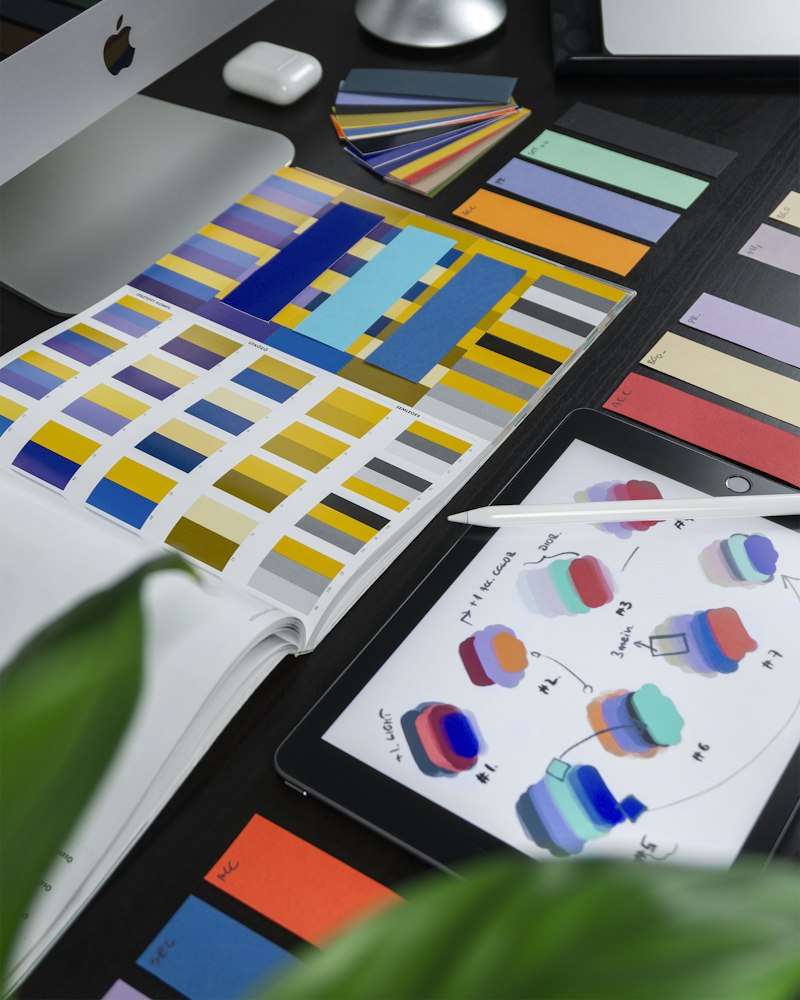
Start with Flux for general use, SDXL for artistic work, and Ideogram for text-heavy images.
Step 3: Magic Prompt — Your Secret Weapon
Magic Prompt is the single feature that separates OpenArt from the "type and pray" experience of other platforms. When you enable it, OpenArt takes your basic description and automatically expands it into a detailed, well-structured prompt. The improvement in output quality is dramatic.
I tested this with a simple prompt: "a cafe in Paris." Without Magic Prompt, I got a generic coffee shop. With Magic Prompt enabled, it added morning light details, cobblestone textures, window reflections, vintage signage, and ambient warmth. Same idea, completely different result. Keep this turned on for your first 50 generations at minimum.
Step 4: Using ControlNet for Precise Results
Once you are comfortable generating basic images, ControlNet is the next skill to learn. It lets you upload a reference image — a stick figure pose, an architectural sketch, a photo with a specific composition — and force the AI to follow that exact structure while applying your creative prompt.
Here is a practical example: say you want a character standing in a specific pose holding a specific object. Without ControlNet, you will regenerate 20 times trying to get the pose right. With ControlNet, upload a photo of someone in that pose and the AI matches it on the first try. It saves credits and frustration in equal measure.
Step 5: Training Your First Custom Model
This is the advanced feature that most beginners do not realize is available to them. You can upload your own images — your face, your brand assets, your product photos — and train a custom AI model that generates new images in the same style or featuring the same subjects.
The process is straightforward. Upload 10 to 20 clear, high-quality images. Choose your training settings (OpenArt suggests defaults that work well). Click train. Wait 15 to 30 minutes. Your custom model is ready to use. Every image you generate with it will have the visual DNA of your training data baked in.
💡 Training tip
Common Beginner Mistakes to Avoid
- Trying every model at once: Stick to Flux for your first week. Learn one model well before exploring others.
- Writing novels as prompts: Longer prompts are not always better. Start with one or two sentences and let Magic Prompt do the heavy lifting.
- Ignoring the negative prompt: The negative prompt field tells the AI what to avoid. "No blurry, no watermark, no extra fingers" makes a real difference in output quality.
- Burning credits on random experiments: Have a clear idea of what you want before generating. Save your free credits for purposeful attempts, not scatter-shot exploration.
FAQ
Do I need to learn prompt engineering?+
What is ControlNet?+
Can I train my own model?+
Related reading
OpenArt AI Full Review · OpenArt Pricing Guide · Best OpenArt Features
Keep Reading
Try Our Free Tools
Want more guides like this?
Join 50K+ readers getting weekly tips on AI, automation & making money online.
Subscribe Free